Uptime · LAN Scanner · Ping

Pingilla
Watches your sites. Sniffs your network.
An uptime monitor, a LAN scanner and a ping tool, together in one small menu bar app. Free to download with 3 sites and 20 devices per scan. Pro removes every limit with one purchase: $7.99 at launch, for a limited time.
Made for macOS 27 Golden Gate, also runs on macOS 26 Tahoe
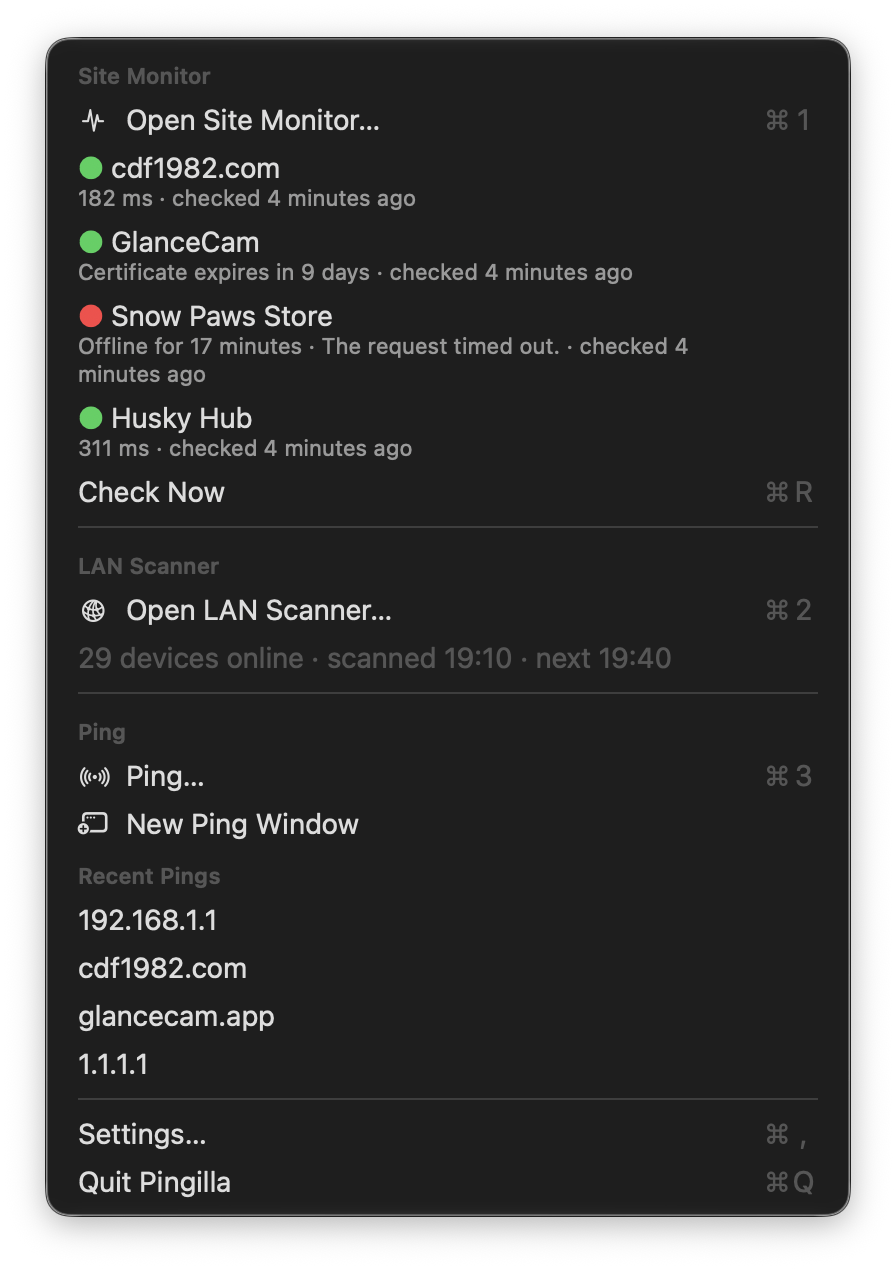
One app instead of three.
For years I had a little app in my menu bar that told me when one of my websites went down. On the new macOS it started acting up, and an uptime monitor you can't trust is worse than no monitor at all, so I wrote my own.
While I was at it, I added the two things I kept opening other apps for: a scanner to see what's connected to my network, and a proper ping. The icon is Milla, my husky (glasses and bandana are artistic license). She notices anything that moves around the house; Pingilla tries to do the same with your sites and your network.
Checks your websites in the background and tells you when one goes down, and when it's back.
More on Site MonitorFinds the devices on your network in about 10 seconds, with names, makers and, with Pro, services.
More on LAN ScannerA real ping to any address or host, local ones included, or a quick web check for a URL.
More on PingKnow when a site goes down, and when it's back.
Add the websites you care about and Pingilla checks them in the background. When one stops answering you get a notification, and another one when it's back online, with how long it was down.
While a site is down, the icon shows a red dot. Hover it to see which site and for how long, or click to see every site with its status, response time and last check.
Checks pause while your Mac sleeps or is offline. Before counting a failure, Pingilla also makes sure your Mac itself is online, so flaky Wi-Fi doesn't turn into a fake outage.
Uptime and response times over 24 hours, 7 and 30 days, and every incident: when, for how long and why. Pingilla also warns you two weeks before a site's SSL certificate expires.
Every site has its own slow threshold. A site that answers but takes too long turns yellow, without sending an alert for something that isn't an outage.
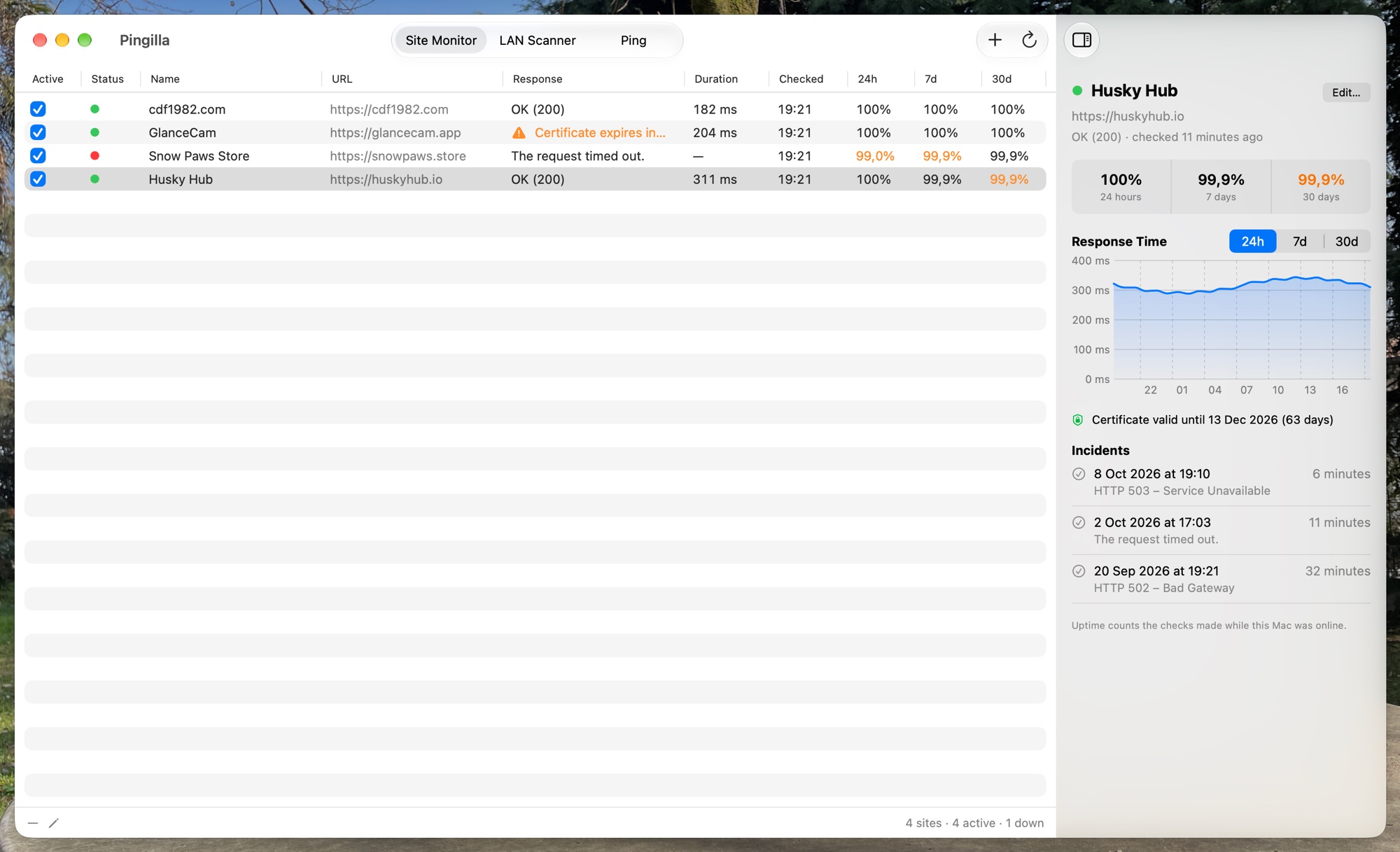
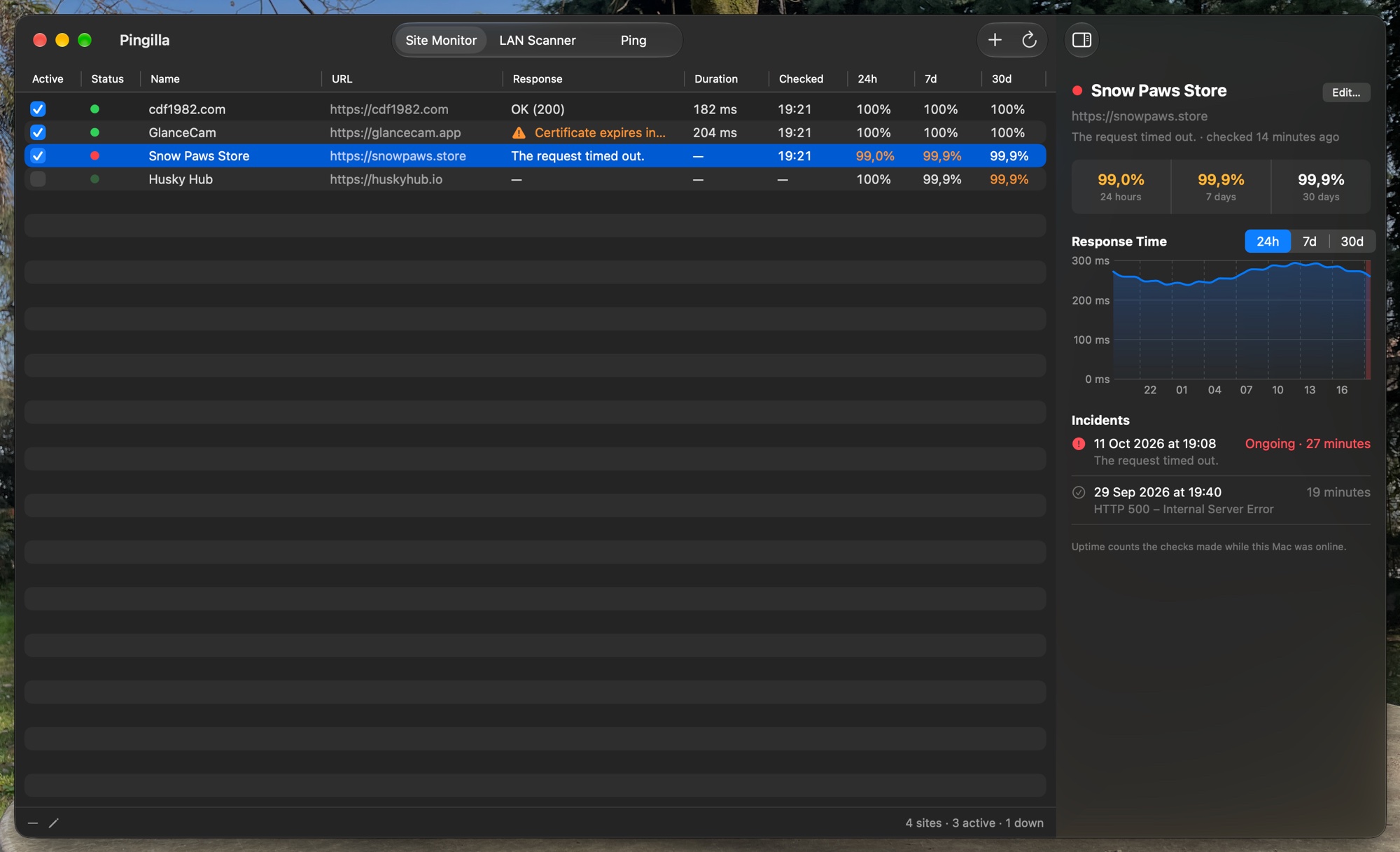
What the dots mean
- UpThe site answered as expected.
- SlowUp, but slower than the threshold you set for it.
- FailingNot answering, but not for enough checks in a row to alert you yet.
- DownFailed enough checks in a row: you got a notification.
- WaitingNot checked yet.
See every device on your network.
A scan takes about 10 seconds and lists what's connected: IP and MAC address, manufacturer (from an IEEE database that ships with the app, so no lookups online), names and ping time, plus services and open ports with Pro. Even iPhones and other devices that ignore ping show up. With Pro you can also open a device's web page, files, SSH or screen sharing in one click, and wake a sleeping Mac or NAS with Wake on LAN.
- 01Ping every addressA quick sweep of every address on your local network.
- 02Knock on portsDevices that ignore ping still give themselves away on common ports.
- 03Read MAC addressesFrom your Mac's own table, to tell devices apart and find their maker.
- 04Names and servicesFrom Bonjour and DNS: AirPlay, file sharing, printers, SSH and more.
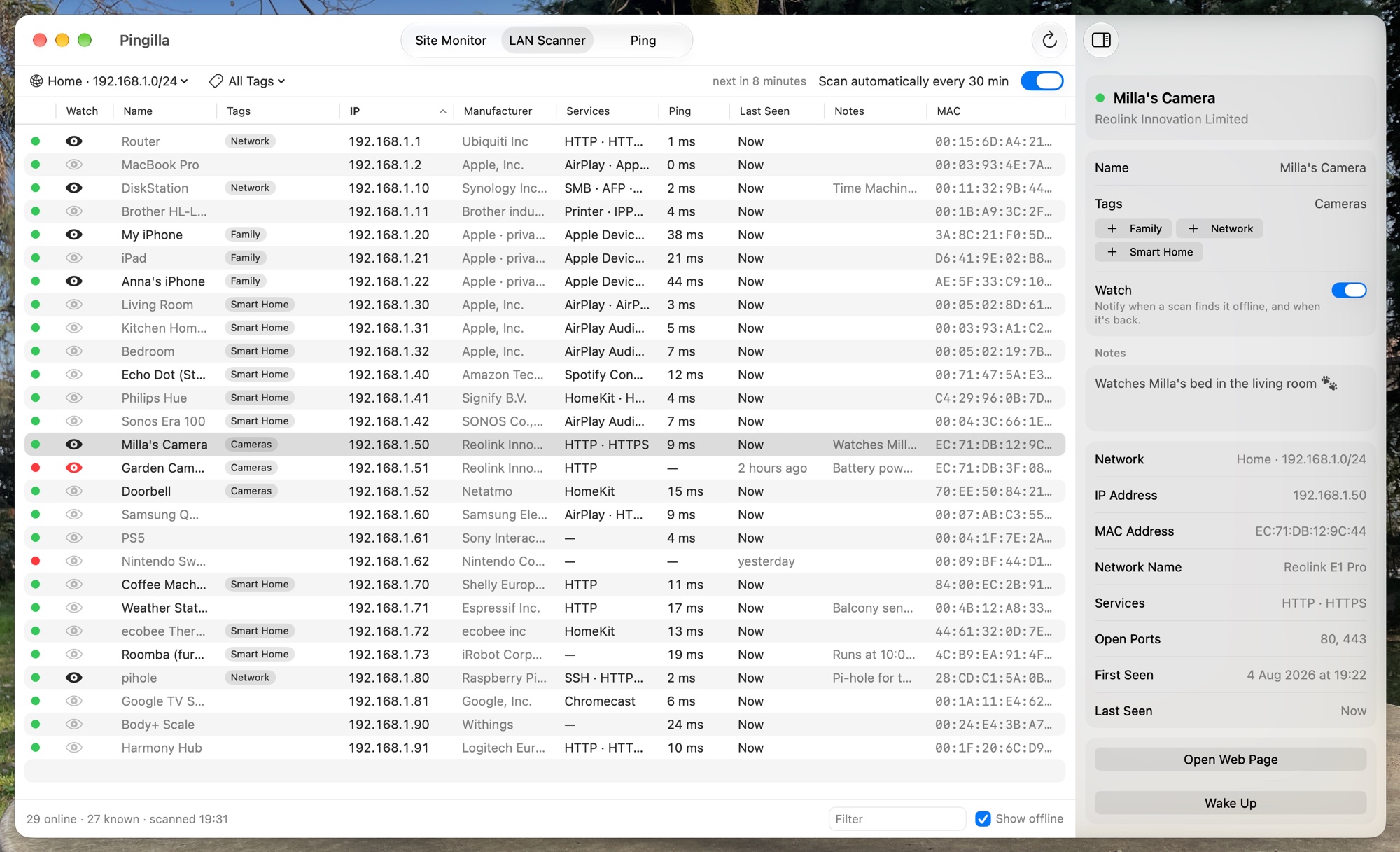
Home, office, your parents' house: Pingilla keeps the devices of each network separately, with when they were last seen, so you can tell what's new and what has gone missing.
Call that mystery box "Living room speaker", write a note, tag devices (also many at once). Filter and sort the list, and choose which columns to see and in what order.
Turn on automatic scans for a network and Pingilla rescans it in the background every 15 or 30 minutes, 1 or 2 hours, only while your Mac is awake and on that network.
Some Mac software, like DNS filters, answers certain ports for every address. Pingilla notices and leaves those results out, so a port shows as open only when it really is.
Get a notification when a new device joins your network, and mark the devices you care about as watched to know when one goes offline and when it's back.
With a VPN on, Pingilla still scans your local network, not the one at the other end of the tunnel, and still recognizes which network you're on.
A real ping, one click away.
Type an IP address or a host name, local ones included, and Pingilla sends a real ICMP ping, like Terminal would. Paste a URL instead and it runs a series of web checks.
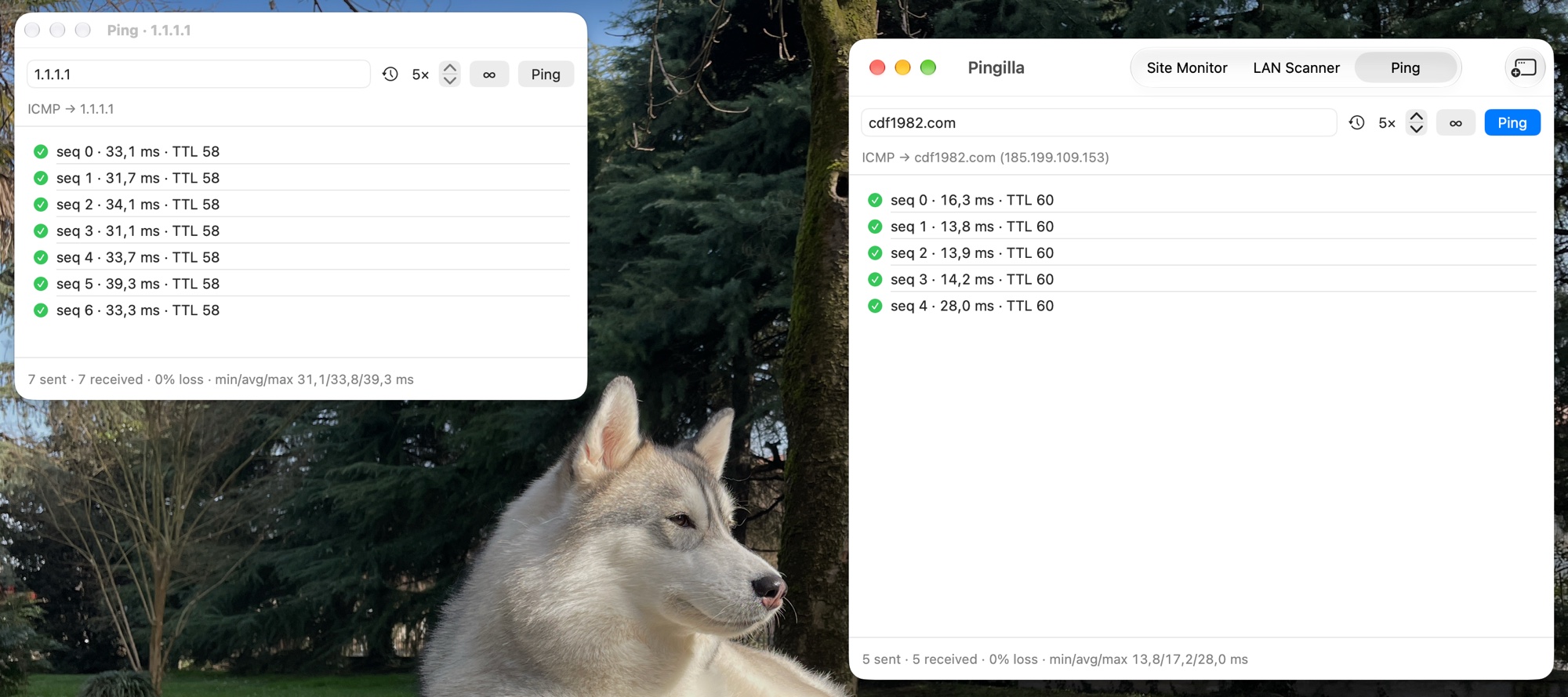
A short series, or nonstop until you press Stop. Open more windows to watch several addresses.
Time and TTL for every reply, then packet loss and minimum, average and maximum when the run ends.
The addresses you pinged last wait in the menu bar menu, so pinging the NAS again is one click.
It stays out of your way.
Pingilla is meant to sit in a corner of your screen and speak up only when it has something to say.
A left click shows your sites, the last LAN scan and your recent pings. Prefer the Dock? Put Pingilla there, or in both places, and let it start at login.
No window at launch, no noise. When a site is down the icon gets a red dot, and hovering it tells you which one and for how long.
No account, no analytics, no tracking. What you monitor and what's on your network stay on your Mac, in the free version and with Pro.
Your data stays on your Mac.
I don't want to know which sites you monitor or what's connected to your network, and Pingilla doesn't tell me. There's no account to create, no analytics, no tracking and no crash reporting service inside the app. Same rules in the free version and with Pro.
The only network traffic is what the features need:
- Your sites, when Pingilla checks them.
- Your local network, when you scan it or ping a device.
- A quick connectivity check (Apple, then Google), only to confirm your Mac is online before calling a site down.
- The App Store, if you buy Pingilla Pro.
Where your data lives:
- Sites, uptime history, devices, names, notes and tags are saved in Pingilla's own folder on your Mac, and nowhere else.
- There's no cloud sync and no server of mine in between.
- Want a copy? Back up everything to a single file, export your devices and a site report as CSV, or print them and save as PDF, and keep them wherever you like.
- The Privacy Policy and the Terms of Service are written by a human (me, Cesare) for other humans.
Free to try. Pro is $7.99, once.
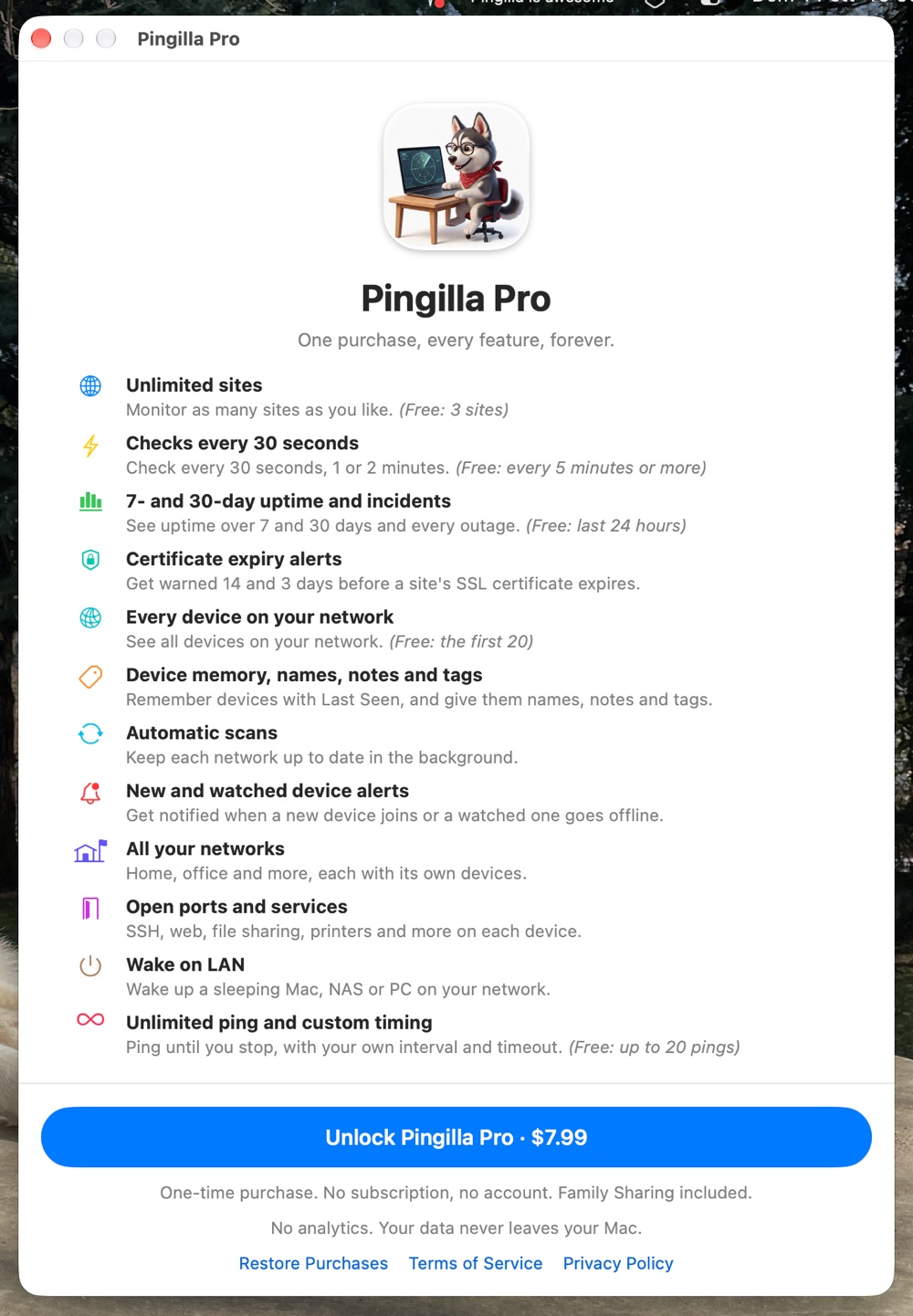
The free version is a real app, not a demo: three sites with notifications, the LAN scanner and ping. If Pingilla earns its spot in your menu bar, Pingilla Pro unlocks everything with a single purchase. No subscription, and Family Sharing is included. $7.99 is the launch price, for a limited time.
- Monitor 3 sites, checked every 5 minutes or more
- Notifications, false-alarm protection and the red dot in the menu bar
- LAN scans showing the first 20 devices
- Ping, up to 20 per run
- No account, no analytics, data stays on your Mac
- Unlimited sites, checked as often as every 30 seconds
- Uptime over 7 and 30 days, with every incident, and alerts before an SSL certificate expires
- Every device, remembered per network with names, notes and tags
- Automatic scans, new and watched device alerts, open ports and services, Wake on LAN
- Family Sharing included, no subscription, ever
Free and Pro, line by line
| Feature | Free | Pro |
|---|---|---|
| Sites monitored | 3 | Unlimited |
| Check interval | Every 5 minutes or more | Down to 30 seconds |
| Notifications, false-alarm protection, menu bar status | ||
| Uptime history | Last 24 hours | 7 and 30 days, incident list |
| LAN Scanner devices | First 20 of the current scan | All |
| Device memory, Last Seen, names, notes, tags | ||
| Automatic scans, new and watched device alerts | ||
| Networks | Current only | All your networks |
| Open ports and services | ||
| SSL certificate expiry alerts | ||
| Wake on LAN | ||
| Ping | Up to 20 pings | Unlimited, custom interval and timeout |
| Backup, CSV export, printing and PDF | ||
| No analytics, data stays on your Mac |
The small print, in plain words.
- Pingilla is made for macOS 27 Golden Gate and also runs on macOS 26 Tahoe. It's available on the Mac App Store.
- The first time you scan or ping a local device, macOS asks if Pingilla can access your local network: say yes, or it can't see your devices.
- Uptime is what Pingilla actually observed: time your Mac spends asleep or offline doesn't count against a site.
- Many phones and computers use private (randomized) MAC addresses, so their manufacturer can't be looked up; Pingilla labels them as private addresses.
- Firewall apps that ask about new connections can hold the first packets for a moment, so the first pings to a new address may time out.
- Nothing is deleted when you hit a free limit: extra sites are paused, and LAN data keeps being saved, ready when you upgrade.
- Questions, bugs, ideas? Write to me, Cesare, at support@cdf1982.com. Reviews and word of mouth are really, really appreciated!
Let Pingilla keep an eye on things.
Download Pingilla for free on the Mac App Store, and upgrade to Pro only if you love it.